04: File Trigger
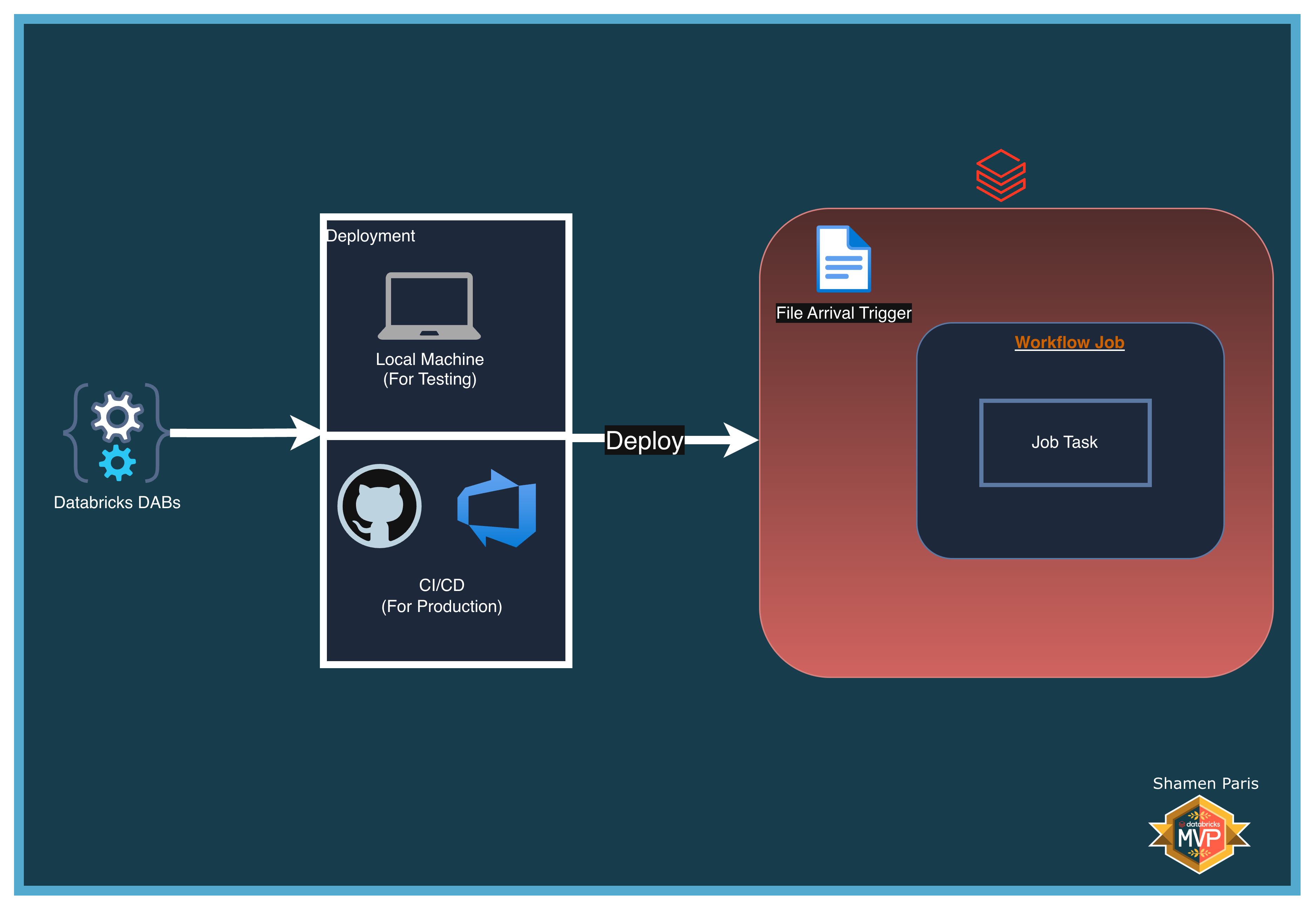
In this module, you will learn how to configure a Databricks Job to automatically run the moment a new file lands in a Unity Catalog Volume or cloud storage path. This enables event-driven data pipelines rather than relying on fixed schedules.
What Are We Building?
Prerequisites and Local Setup
Complete the Prerequisites and Local Setup before continuing.
Setting Up Unity Catalog and a Volume
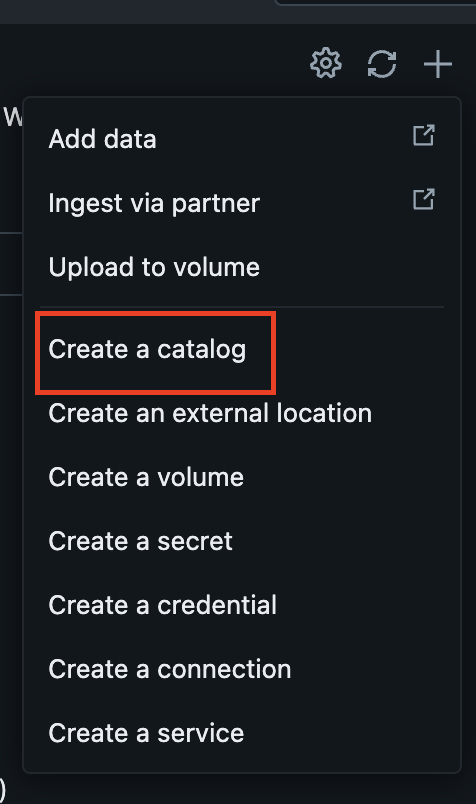
If you do not yet have a Unity Catalog and Volume, create them as follows.
Option 1: Using the Databricks UI
Option 2: Using the CLI
databricks catalogs create main
databricks volumes create main demo landing_zone MANAGED
Bundle Structure
databricks.yml— The master control file.resources/jobs/file_trigger_job.yml— Contains thetrigger: file_arrivalblock, which monitors a specific path for new files.src/file_trigger_notebook.py— The notebook that executes when the trigger fires.
How to Deploy and Run
Once authenticated, navigate to this folder (04-file-trigger) in your terminal.
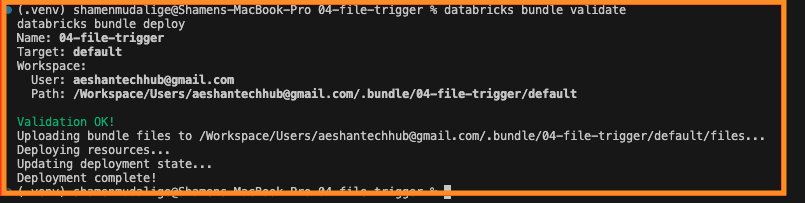
Step 1: Validate and deploy
databricks bundle validate
databricks bundle deploy
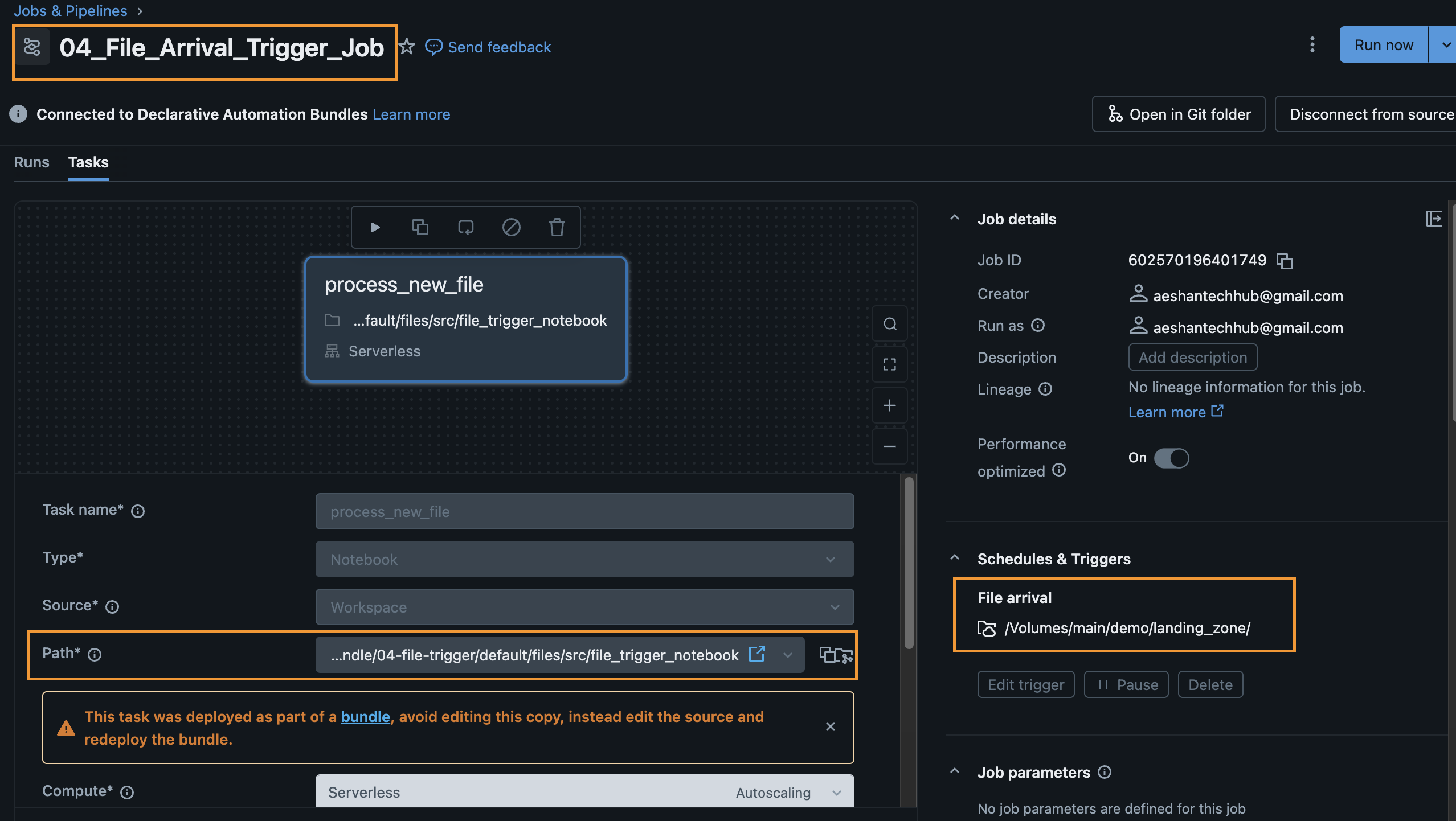
Step 2: Verify the trigger in the UI
Once deployed, the job will enter a “Waiting for file” state. You can verify this in the Databricks Workflows UI.
Step 3: Trigger the job
Upload a sample file (such as a .csv or .txt) into your /Volumes/main/default/landing_zone volume using the Databricks Catalog UI. The job will automatically start within 60 seconds.
A test file is available at docs/downloads/04-file-trigger/trigger.csv.