05: Table Update Trigger
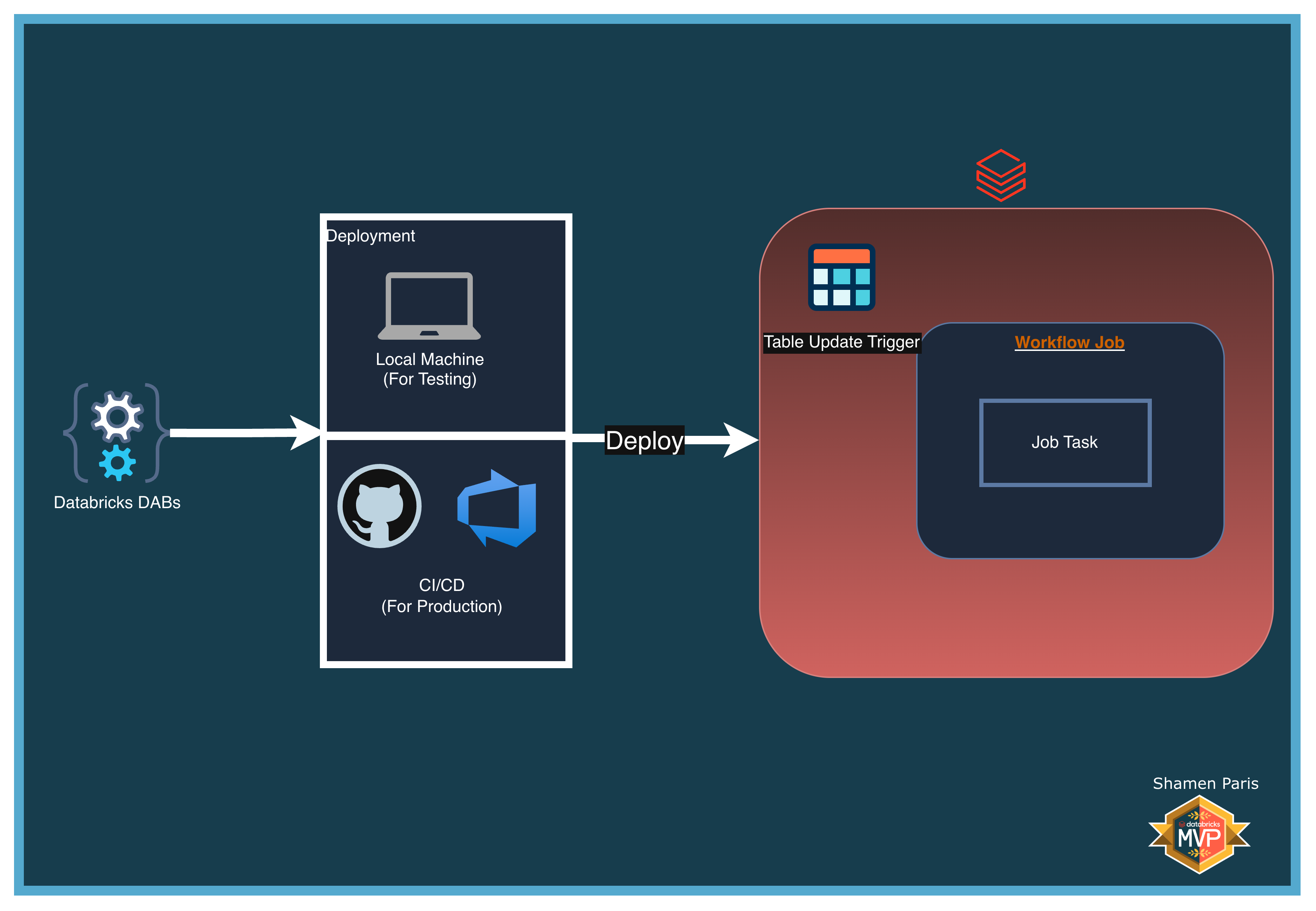
In this module, you will learn how to configure a Databricks Job to automatically run the moment a specific Delta Table is updated. This pattern is common in Lakehouse architectures where pipelines are chained by data availability rather than rigid schedules.
What Are We Building?
Prerequisites and Local Setup
Complete the Prerequisites and Local Setup before continuing.
Additional Requirement
You must have a Unity Catalog Delta table at main.demo.landing_table. If you do not have one, run the following SQL:
CREATE TABLE IF NOT EXISTS main.demo.landing_table (col1 INT, col2 STRING);
Alternatively, update the table_names configuration in table_trigger_job.yml to point to an existing Delta table in your workspace.
Bundle Structure
databricks.yml— The master control file.resources/jobs/table_trigger_job.yml— Contains thetrigger: table_updateblock, which monitors a Delta table’s transaction log for changes.src/table_trigger_notebook.py— The downstream notebook that executes when the trigger fires.
How to Deploy and Run
Once authenticated, navigate to this folder (05-table-update-trigger) in your terminal.
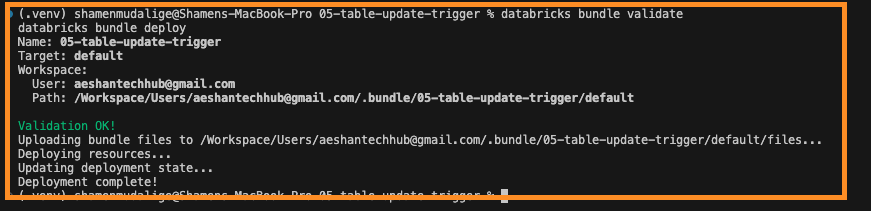
Step 1: Validate and deploy
databricks bundle validate
databricks bundle deploy
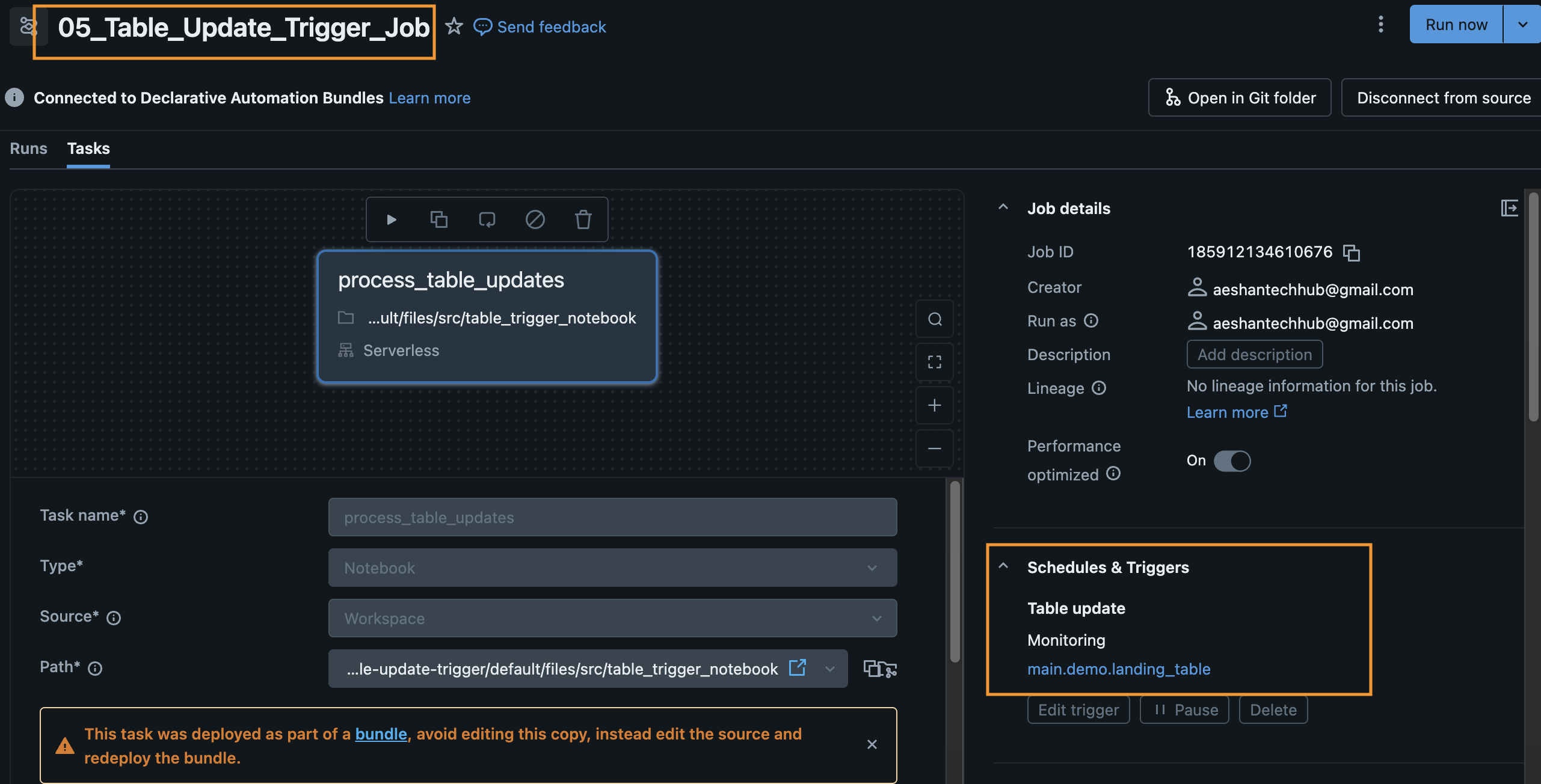
Step 2: Verify the trigger in the UI
Once deployed, the job will enter a “Waiting for table update” state. You can verify this in the Databricks Workflows UI under the Job details.
Step 3: Trigger the job
Run a simple INSERT, UPDATE, or MERGE statement against main.demo.landing_table using the Databricks SQL Editor or a notebook. The job will detect the Delta commit and start automatically.